MCP Setup Guide
Complete step-by-step instructions for connecting Claude Desktop to your Assay library
Prerequisites
Claude Desktop installed
Download from claude.ai/download
Node.js installed (v18 or higher)
Check with
node --versionAssay account
Sign in at assay.cirrusly-clever.com
Git installed (for cloning repository)
Check with
git --version
Step 1: Get Your MCP Token
- Sign in to your Assay dashboard
Navigate to assay.cirrusly-clever.com/dashboard
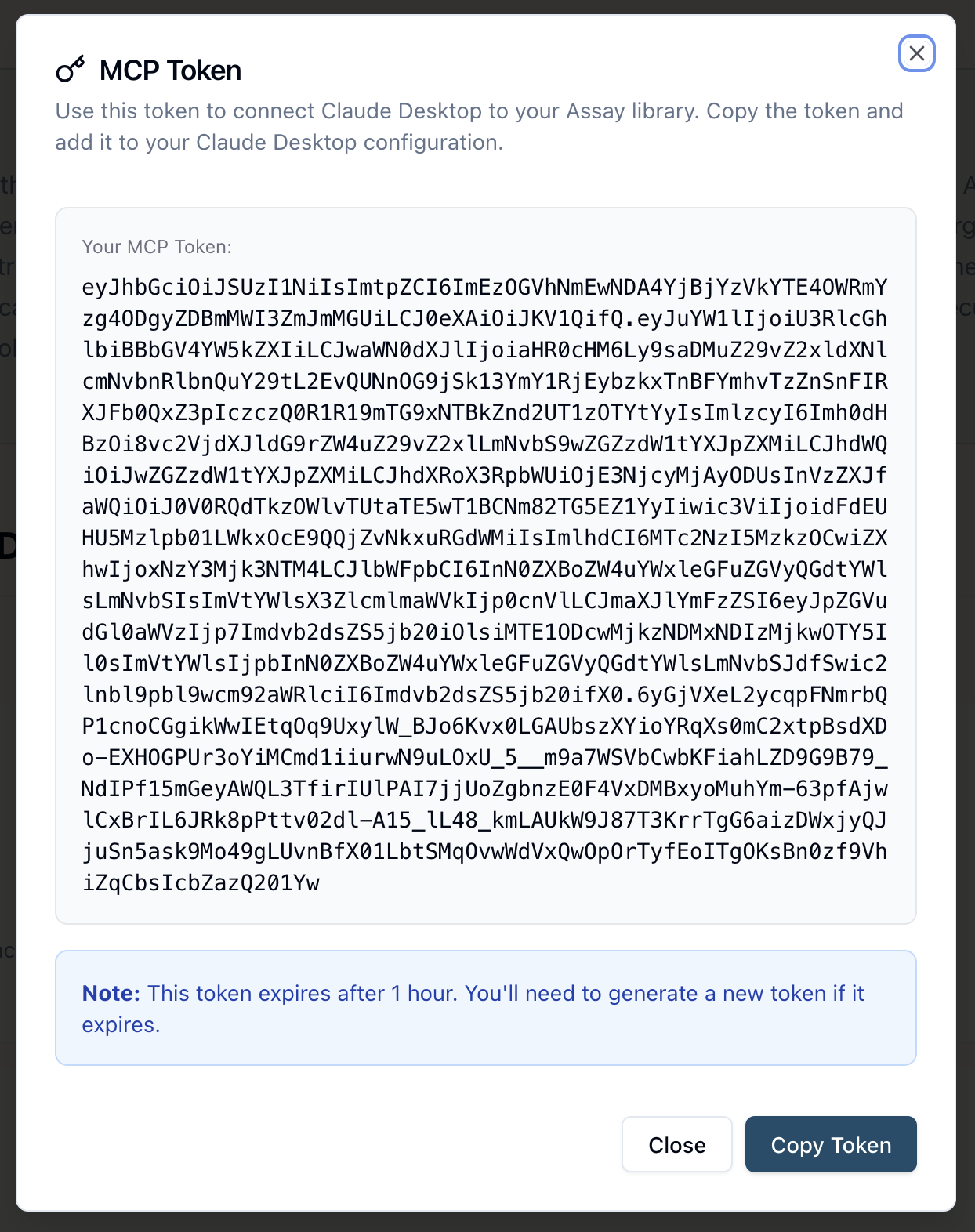
- Click "Get MCP Token" in the header
The button is located in the top navigation bar
- Copy the token
The token expires after 1 hour. You'll need to get a new token if it expires.
Token Security
MCP tokens are Firebase ID tokens that authenticate your MCP server. Keep them secure and don't share them publicly. Tokens automatically expire after 1 hour for security.
Step 2: Install the MCP Server
Install from npm (Recommended)
The easiest way to install the Assay MCP Server is via npm. This installs the server globally on your system.
npm install -g assay-mcp-serverView the package on npm: npmjs.com/package/assay-mcp-server
Alternative: Install from Source
For development or if you want the latest features, you can install from source:
git clone https://github.com/cirruslycurious/assay-mcp-server.gitcd assay-mcp-server && npm install && npm run buildView source on GitHub: github.com/cirruslycurious/assay-mcp-server
Note
On some systems, you may need to use sudo for global installations. Alternatively, you can use npx in your Claude Desktop configuration (see Step 3).
Step 3: Configure Claude Desktop
Find your Claude Desktop config file
macOS: ~/Library/Application Support/Claude/claude_desktop_config.json
Windows: %APPDATA%\Claude\claude_desktop_config.json
Linux: ~/.config/Claude/claude_desktop_config.json
Add Assay MCP server configuration
Add this configuration to your mcpServers object:
Option 1: Using global npm install (Recommended)
{
  "mcpServers": {
    "assay": {
      "command": "assay-mcp-server",
      "args": [
        "--token",
        "YOUR_FIREBASE_TOKEN_HERE"
      ]
    }
  }
}
Option 2: Using npx (No installation required)
{
  "mcpServers": {
    "assay": {
      "command": "npx",
      "args": [
        "-y",
        "assay-mcp-server",
        "--token",
        "YOUR_FIREBASE_TOKEN_HERE"
      ]
    }
  }
}
Option 3: Using local source installation
If you installed from source, use the absolute path:
{
  "mcpServers": {
    "assay": {
      "command": "node",
      "args": [
        "/absolute/path/to/assay-mcp-server/dist/index.js",
        "--token",
        "YOUR_FIREBASE_TOKEN_HERE"
      ]
    }
  }
}
Replace /absolute/path/to/assay-mcp-server with your actual path, e.g., /Users/yourname/Documents/assay-mcp-server/dist/index.js
Replace the token
Replace YOUR_FIREBASE_TOKEN_HERE with the token you copied in Step 1.
Step 4: Restart Claude Desktop and Test
- Restart Claude Desktop
Close and reopen Claude Desktop to load the new MCP server configuration
- Check MCP connection
Look for "assay" in the MCP servers list. You should see it connected.
- Test with a simple query
Try asking: "Search for documents about AI" or "What themes are in my library?"
- Verify tools are available
Claude should be able to use Assay tools like search_documents, get_document_summary, etc.
Example Queries to Try
- • "Search for documents about cloud architecture"
- • "What documents do I have about AI safety?"
- • "Generate FAQs about threat modeling from my documents"
- • "Compare documents about zero trust and confidential computing"
- • "What are the main themes in my library?"
Troubleshooting
MCP Server Not Connecting
Check the path: Ensure you're using an absolute path to the MCP server, not a relative path.
Verify Node.js: Make sure Node.js is installed and accessible from the command line.
Check token: Tokens expire after 1 hour. Get a new token from the Assay dashboard.
Check logs: Look at Claude Desktop logs for error messages.
Tools Not Available
Restart Claude Desktop: Sometimes a full restart is needed after configuration changes.
Check MCP status: Verify the "assay" server shows as connected in Claude Desktop.
Try explicit prompts: Sometimes Claude needs explicit instructions like "Use the assay:search_documents tool to find documents about X".
Token Expired
Get a new token: Tokens expire after 1 hour. Go to the Assay dashboard and click "Get MCP Token" again.
Update config: Replace the token in your Claude Desktop config file and restart.
Consider automation: For production use, you may want to automate token refresh or use a longer-lived authentication method.
Additional Resources
10 Prompting Patterns
Learn proven patterns to force grounding, expose reasoning, and get reliable intelligence from your Assay corpus.
MCP Server Repository
View the source code, report issues, and contribute to the MCP server.
Assay Skill Documentation
Learn more about the Assay Skill and how it enhances MCP interactions.